Create and manage group bookings
Hold rooms for an event or organization, share booking links, track pickup, and report group coverage.
Group bookings let you hold several rooms for a business, wedding, event, or family gathering. Guests can reserve from the held inventory through a private link, while staff track pickup and the group contact follows progress from a separate management link.
Before you begin
Your property must have the property management system and Group Bookings enabled. Staff also need the Manage Availability capability to create, open, or change a group block. The property owner can grant this capability under Settings → User Groups.
Group coverage is informational. Room charges, extras, payments, and balances remain on each reservation's folio; a group coverage report does not create a payable master folio. Enabling coverage does not waive or reduce the deposit required from a guest.
Create a group block
- Open the Occupancy Map.
- Select available rooms across the group's stay dates.
- Choose New group block.
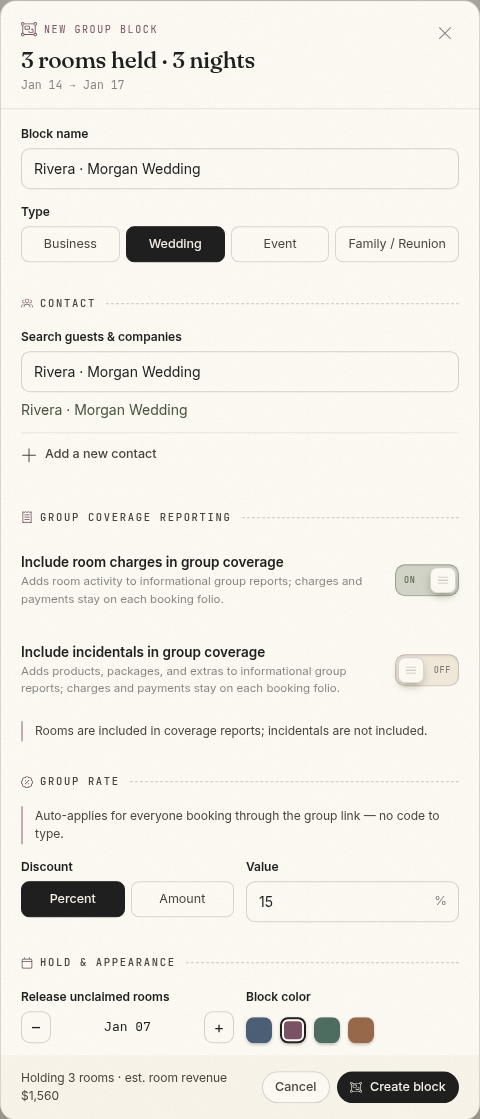
- Enter a Block name and select its type: Business, Wedding, Event, or Family / Reunion.
- Search for an existing guest or company contact, or add a new person or company. This contact receives the private management link when an email address is available.
- Under Group coverage reporting, choose whether room charges, incidentals, both, or neither appear in the group's informational report.
- Optionally enter a percentage or fixed-amount Group rate. It is automatically applied when guests reserve through the group booking link.
- Set Release unclaimed rooms to the date when the guest link should stop accepting new room claims. Guests must begin checkout before that date. Then choose a block color for the Occupancy Map.
- Review the held-room count and estimated room revenue, then select Create block.
Only rooms that remain available when you submit the form are added. If another reservation takes a selected room first, Comfortly omits that room from the block.

Use the group block page
Open Bookings → Group Bookings and select a block. Active blocks also appear under All, and their colored bars appear on the Occupancy Map.
The group block page shows:
- Held and booked rooms, pickup progress, stay dates, and estimated rates
- The main contact and private management link
- The guest booking link and its current status
- The release date for unclaimed rooms
- Group coverage settings and totals
- A summary timeline of creation, pickup, cutoff, and arrival milestones
The block is Confirmed when it contains rooms and none remain held. Otherwise its status is Tentative hold. In the Bookings list, past blocks appear as Closed.

Add or release a held room
Select Add room on the group block page to add another available room for the same stay dates.
To return an unclaimed room to general availability, find it in the room list and select Release room. Releasing a held room does not affect rooms guests have already booked.
Assign a held room for a guest
Staff can turn a hold into a reservation:
- Find the held room on the group block page.
- Select Assign guest.
- Search for an existing guest or add a new one.
- Select Pick up for selected guest or Create guest & pick up.
The new reservation remains connected to the group block. Open it to review its rate, charges, payment requirements, and guest details. A configured group rate is automatically applied to reservations made through the public group link; review pricing when staff create a reservation with Assign guest.
Share the guest booking link
The Guest booking link is the link to send to invitees. Select Copy link. When the contact has an email address, Email guest booking link opens your email application with a prepared message.
Guests opening the link can see only rooms still held for the group. They choose Book this room and complete the normal checkout flow with their contact and payment information. A room is no longer offered after it is reserved or another guest begins claiming it.

The guest booking page closes when:
- The release date is reached
- No held rooms remain available
- Staff revoke the link
In those cases, the closed page directs the guest to contact the property. Releasing the entire block removes it, so its old links become unavailable instead. Existing reservations are not canceled when access closes or the block is released.
Rotate or revoke the guest link
- Rotate link immediately replaces the current URL. Anyone using the old URL loses access.
- Revoke link closes guest access without releasing held rooms or canceling reservations.
- Create new link restores access after revocation with a different URL.
Use these actions if a link was shared with the wrong audience. Send the new URL to the intended guests after rotating or restoring it. Rotation and revocation prevent new checkout starts, but they do not stop a checkout that has already claimed a room. Release that held room from the block if you need to stop an in-progress claim.
Adjust the release date
Use the minus and plus controls beside Release unclaimed rooms to change the cutoff. The date cannot be later than the group's arrival date.
On the cutoff date in the property's time zone, the guest link stops accepting new room claims. A checkout already in progress keeps its room while the guest remains active; its claim expires after 15 minutes without activity. A scheduled cleanup runs every 15 minutes and releases unclaimed or expired holds. Reservations already completed remain in place.
Share the contact management link
The Contact management link is private and intended only for the main group contact. It is different from the guest booking link.
The contact can:
- See which rooms are available or booked and view pickup progress
- See guest names for booked rooms
- Copy the guest booking link for invitees
- Review the informational group coverage total and open a printable statement when room or incidental coverage reporting is enabled
The contact cannot edit rooms, assign guests, change dates or coverage, release inventory, or collect payments from this page.

Select Copy management link to copy it. When the contact has an email address, Email management link opens your email application. Comfortly also emails the initial management link when the block is created and the contact has an email address.
Rotate or revoke the management link
- Rotate link invalidates the old management URL and creates a new one.
- Revoke link removes the contact's access.
- Create new link restores access with a new URL.
Management links expire after one year. Rotate the link and send the replacement if the contact sees an expired-link message. The contact can also use Manage booking with the group confirmation number and the main contact's last name or company name to recover the current management page.
Understand group coverage and statements
The group coverage section reports selected activity across picked-up reservations:
- Room charges included in report adds room charges and related cancellation adjustments to the coverage total.
- Incidentals included in report adds products, packages, and extras.
- Held rooms (est.) shows an estimate for rooms not yet claimed.
Select either coverage switch on the staff page to change what the report includes. Select View statement to open a printable summary of the roster and reported amounts.
Coverage totals and held-room rates are informational estimates, not a bill or guaranteed contracted total. Charges and payments stay on individual booking folios. Use each reservation's folio for collection, refunds, and accounting.
Release the entire block
Select Release block at the bottom of the group block page when the block should no longer hold inventory.
Releasing the block:
- Frees all unclaimed held rooms
- Closes both private links and reporting access
- Deactivates the block's group discount
- Keeps existing reservations, but detaches them from the released block
Releasing a block cannot be undone. It does not cancel reservations that guests or staff already created. Any checkout still in progress for a held room can no longer be completed.
Troubleshooting
- A room is missing while creating or expanding a block: It is inactive, blocked, or no longer available for the entire date range.
- The guest link says reservations are closed: Check the release date, held-room availability, and whether the link was revoked.
- A guest cannot find their completed reservation through the group link: Use the normal confirmation lookup with the reservation confirmation number and the guest's last name.
- The group contact cannot open the management page: The link may have expired, been rotated, or been revoked. Create or rotate it and send the current URL.
- A group rate is not shown: Confirm the discount is active and that the guest started from the group booking link. Review staff-created reservation pricing separately.
- Group Bookings is missing: Confirm that Group Bookings and the property management system are enabled and that the staff user has Manage Availability.