Manage rooms in a group booking
Add or release held rooms, assign guests, and connect an existing reservation to a group.
Manage rooms in a group booking
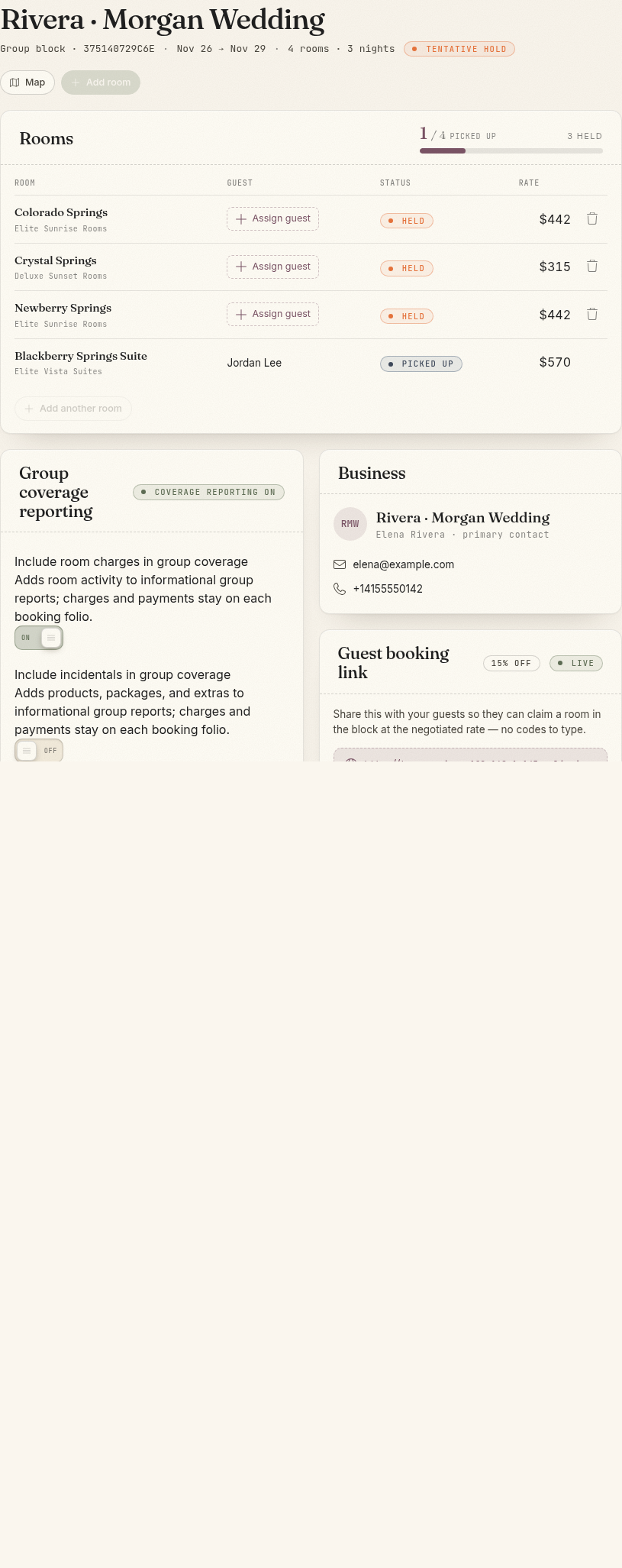
Open Bookings → Group Bookings, then select the block you want to manage. The room list separates rooms that are still held from rooms that guests have picked up.
Assign a held room to a guest
- Find a held room.
- Select Assign guest.
- Search for an existing guest, or add a new guest.
- Select Pick up for selected guest or Create guest & pick up.
- Confirm that the guest now appears in the room list.
The new reservation stays connected to the group. Open it to review its rate, charges, payment requirements, and guest details.
A group rate is applied automatically to reservations started from the guest booking link. Review the price when staff assign a room.
Add another held room
- Select Add room at the top of the group booking page.
- Choose an available room for the group's stay dates.
- Select Add room.
- Confirm that the held-room count increased.
You cannot add rooms after the release date or when no suitable rooms remain.
Release an unclaimed room
- Find a room marked as held.
- Select Release room.
- Confirm the action.
The room returns to general availability. This does not change rooms that guests already booked.
Add an existing reservation
Use Add existing reservation when a guest already has a reservation that belongs with the group.
- Select Add existing reservation.
- Search by confirmation number, guest name, email address, or phone number.
- Select an eligible reservation.
- Confirm that it appears in the group room list.
A reservation cannot be added if it belongs to another group, is canceled, is for another property, does not overlap the group's stay dates, or conflicts with held inventory.
Release the entire block
Select Release block only when the group should no longer hold inventory. This cannot be undone.
Releasing the block:
- Frees all unclaimed rooms
- Closes the guest and contact management links
- Deactivates the group discount
- Keeps existing reservations, but removes their connection to the block
It does not cancel reservations that were already created.
Common problems
- Assign guest is unavailable: Another guest may have an active checkout for that room.
- Add room is unavailable: The release date passed, no suitable room remains, or a usable rate is missing.
- An existing reservation is missing from search: Check its dates, property, cancellation status, and group connection.
- A room was claimed before staff assigned it: Refresh the page and choose another held room.