Create and manage bookings
Make staff reservations, find stays, update details, collect payment, and complete check-in and checkout.
The Bookings area keeps reservation details, guest communication, room assignments, charges, payments, and stay activity together.
Permissions
Signed-in property staff can open Bookings, create reservations, update standard details, collect payments, and complete normal stay actions without an additional capability. The property management system must be enabled.
Some actions require more access:
- Manage Availability is required to start booking work from the Occupancy Map and to add, remove, move, or change dates for room allocations.
- Manage Booking Financial Adjustments is required to waive a cancellation fee.
- Manage Guest Inbox is required to view and reply to SMS and supported OTA conversations.
The property owner can grant capabilities under Settings → User Groups.
Create a booking
- Open Bookings from the sidebar.
- Select New Booking. The booking flow opens in a new tab.
- Enter the check-in and checkout dates, adults, children, pets when offered, and any accessibility request.
- Choose an available room and rate plan.
- Add optional products or packages.
- Enter or confirm the guest's contact information and special requests.
- Add the payment method required by the booking.
- Review the total and confirm the reservation.
The staff flow uses the same availability and pricing rules as the direct booking page. If a room or rate is missing, check the rate plan, minimum stay, blockouts, and existing reservations.
You can also start reservation work from the Occupancy Map when you need to see room-by-room availability.
Find a booking
Open Bookings and search by booking ID, guest name, email address, or phone number.
Use the filters to focus the list:
- All
- Recent
- Upcoming
- In House
- Past
- Cancelled
Select a booking to open its overview.
Use the booking overview
The overview brings together the room charges, payments, notes, guest, policies, and stay timeline.
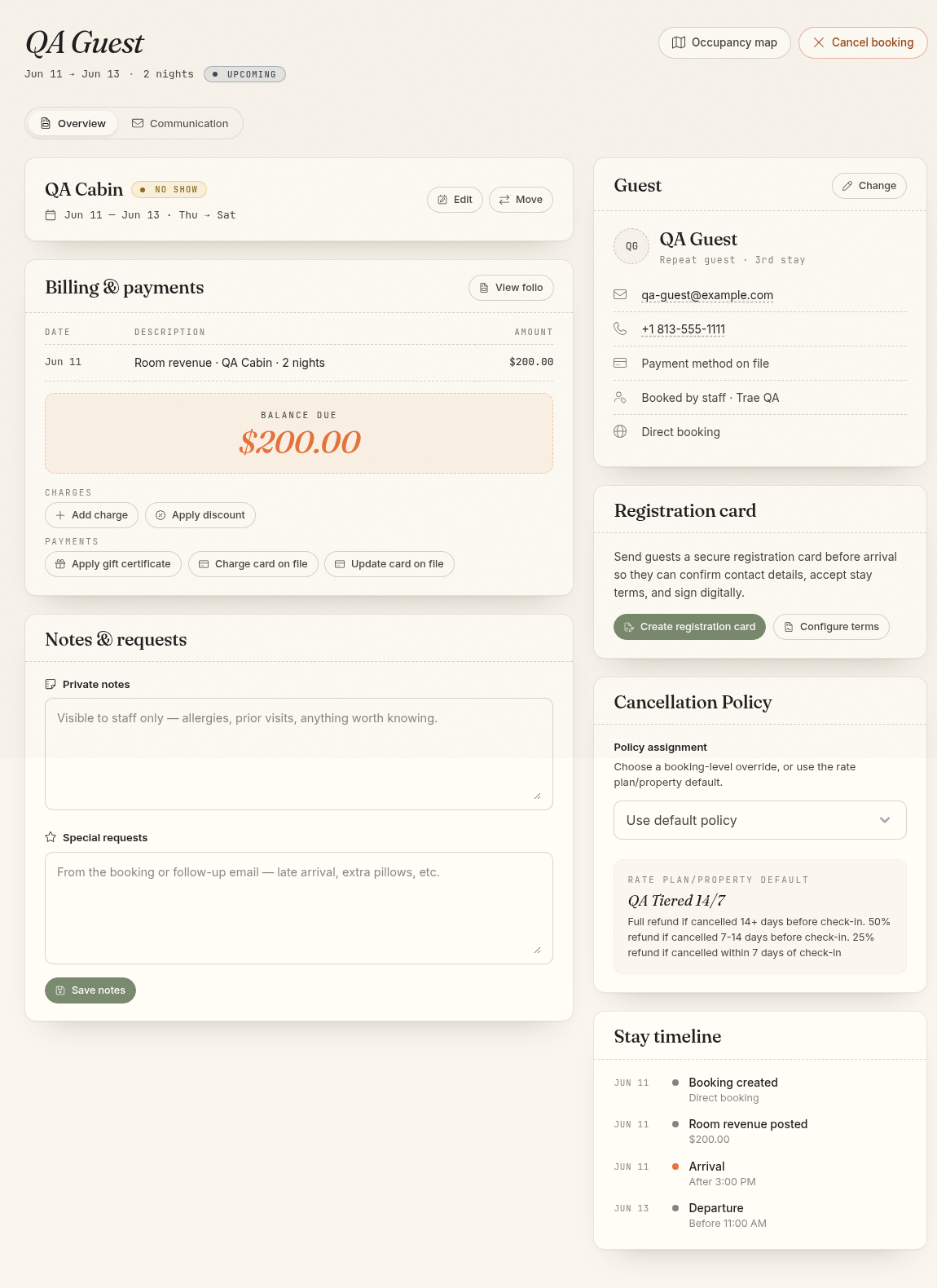
Common actions include:
- Communication: Review and send booking messages.
- Edit: Update reservation and guest-facing details that are still editable.
- Move: Change dates or move the stay to another eligible unit.
- Occupancy map: Return to the calendar around this stay.
- Cancel booking: Cancel the reservation and review any refund or cancellation charge.
Some actions disappear after checkout or cancellation. OTA reservations are identified on the booking, but Comfortly does not block every local edit. Make OTA-controlled changes in the connected channel unless the workflow explicitly directs you otherwise.
Add notes and requests
- Private notes are for staff and are not shown to the guest.
- Special requests record guest-facing stay requests.
Select Save notes after making changes.
Do not place full card numbers or other sensitive payment data in notes.
Record and update pets
When the property has an active unit that permits pets, the booking form shows Number of pets. Enter a nonnegative whole number, or 0 for no pets. You can track pets without a pet fee. Guest and staff bookings follow the same pet limits; every selected unit must accommodate the count.
To correct a confirmed reservation:
- Open the booking overview.
- Under Notes & requests, update Number of pets.
- Select Save notes.
- Review Billing & payments or the folio for any resulting charge.
If the property has a pet-fee rule, adding pets applies the configured product and its taxes once per reservation. Increasing the count does not multiply the charge. Removing all pets does not remove or refund an existing charge; staff must review and remove the charge manually when appropriate.
When changing or adding rooms, choose units whose pet limits accommodate the reservation. To change the policy, see Set up unit groups and units → Set pet limits. To configure a fee, see Set up products and packages → Add an optional pet fee.
Pet counts are not currently imported automatically from Channex. Review incoming reservations and enter the count manually when known; a recorded zero is not confirmation that the guest has no pets.
Manage charges and payments
Under Billing & payments you can:
- Open View folio for the full financial record
- Add charge for a product, package, or point-of-sale item
- Apply discount
- Apply gift certificate
- Charge an eligible card on file
- Update the card on file
- Use a card reader when Stripe Terminal is enabled
Always review the current balance before collecting payment. If a card attempt remains pending or its outcome is unclear, do not try another charge until the first attempt is confirmed.
Use the folio to review charges, discounts, taxes, payments, refunds, and the amount still due. A folio can be printed or emailed when the guest has an email address.
Check in a guest
When the booking is eligible for arrival, use the check-in action from the booking or front-desk workflow.
Before check-in:
- Confirm the assigned unit and stay dates.
- Review private notes and special requests.
- Confirm the registration card and stay terms if your property uses them.
- Review the balance and required payment method.
- Resolve any double-booking or room-readiness warning.
Checking in changes the booking to In House and updates operational views.
Check out a guest
Before checkout, review the folio, post any final charges, and collect the remaining balance according to property policy. Then use the checkout action.
Checkout completes the stay and can trigger post-stay workflows such as housekeeping, reviews, and loyalty-point qualification.
Move or change a stay
Use Move to select eligible dates or units. Comfortly checks availability and pricing before saving the change.
Review the new room charges, taxes, discounts, and payment balance after any date or unit change. Split stays and locked allocations may require a different workflow or manager help.
Cancel a booking
Select Cancel booking, review the cancellation policy, fee, and refund calculation, then confirm the cancellation.
Do not cancel an OTA reservation locally unless the workflow explicitly allows it. OTA cancellations normally need to originate from the connected channel.