Manage guest profiles
Create and find guests, review stays and communication, update contact details, and merge duplicates.
Guest profiles connect a person's or company's contact information with their stays, communication, loyalty activity, and other property records.
Permissions
Signed-in property staff can find, create, and edit guest profiles without an additional capability. Some actions require more access:
- Manage Guests is required to merge duplicate profiles.
- Manage Guest Inbox is required to change SMS consent and view or reply to SMS and supported OTA conversations.
The property management system must be enabled to show Guests in the sidebar. An active loyalty program is required for enrollment, but enrollment does not require another capability. The property owner can grant capabilities under Settings → User Groups.
Find a guest
- Open Guests from the sidebar.
- Use Search to enter a name, company, email address, or phone number.
- Select a result to open the guest profile.
Search matches partial contact details, so you can use only part of a name, email, or phone number.
Create a guest
- Open Guests.
- Select New Guest.
- Choose the Guest type:
- Person for an individual guest
- Company for a business or organization
- Enter the company name when applicable.
- Enter the first name, last name, and email address.
- Add an optional phone number.
- Select Create guest.
Use the best email address available. Comfortly uses it for booking confirmations, guest lookup, payment-method workflows, and communication history.
Before creating a profile, search for the guest to avoid a duplicate.
Use the guest profile
A guest profile can show:
- Stays: Upcoming, current, past, and cancelled bookings
- Communication History: Booking emails and related messages
- Contact info: Email address and phone number
- SMS communications: Current SMS consent status
- Loyalty: Membership, balances, referrals, and recent activity when enabled
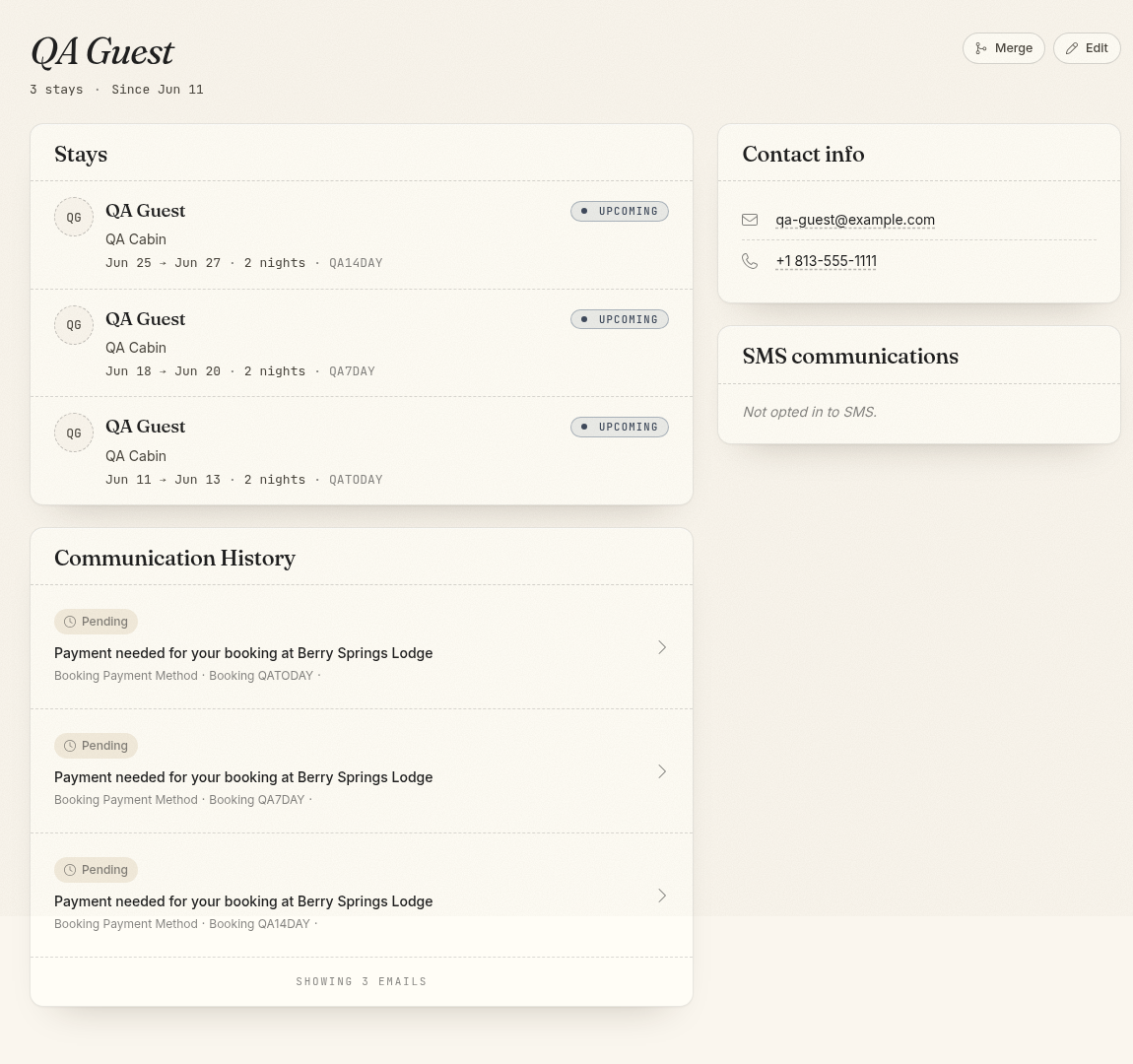
Select a stay to open its booking. Select an email or message to review its status and content.
Edit contact information
- Open the guest profile.
- Select Edit.
- Update the guest type, name, company, email, or phone number.
- Select Save changes.
Changing contact details affects future communication and guest lookup. It does not rewrite already sent messages or historical booking transactions.
If an email or phone change creates a likely duplicate, review existing profiles before continuing.
Manage SMS consent
The profile shows whether the guest is opted in to SMS communication. Only send text messages when the property has the required consent.
Authorized staff can update the SMS opt-out status from the guest profile. A guest's STOP or unsubscribe request must remain honored unless the guest provides valid new consent.
Enroll a loyalty member
When the loyalty program is active, the profile includes a Loyalty card.
Select Enroll guest to create the membership. If a signup bonus is configured, choose whether to award it. The card then shows available and pending points, member and referral details, and recent activity.
Merge duplicate profiles
Merging combines records and archives the duplicate. It cannot be undone.
- Open the profile that may be duplicated.
- Select Merge.
- Search for and choose the other profile.
- Choose which profile staff should keep using.
- Resolve any conflicting email, phone, address, or Stripe customer details.
- Review the records that will be combined.
- Select Merge profiles and confirm.
Bookings, communication, imported stays, gift certificates, reviews, room blocks, and loyalty history move to the retained profile. When both profiles have loyalty memberships, Comfortly combines their histories and recalculates balances.
Review the two profiles carefully before confirming, especially when names are similar but contact information belongs to different people.
Guest data and payment security
Keep guest details limited to information needed for the stay and communication. Do not store full card numbers, identity documents, or other sensitive payment data in guest names, contact fields, or notes.