Set up and run housekeeping
Configure stay-over cleans, build checklists, assign rooms, track progress, and inspect completed work.
Housekeeping connects booking departures and stay-overs with room cleaning, staff assignments, checklists, inspections, and room reference photos.
Permissions
The Housekeeping feature must be enabled. Access depends on the work:
- The Queue and cleaning actions are available to signed-in staff without an additional capability. Visible Queue work can be limited by assignment and the Hide unassigned units in the Queue setting.
- Manage Housekeeping is required in the normal interface to configure settings and checklists, use the Manager board, assign rooms, and perform inspections.
- View Reports is required to open Housekeeping Completions and the arrival/departure unit matrix.
The property owner can grant capabilities under Settings → User Groups.
Before you start
Confirm that:
- The Housekeeping feature is enabled for the property.
- Units used by housekeeping are Active.
- Managers have permission to manage housekeeping.
- Housekeeping staff have access to perform assigned work.
- Unit photos show how each finished room should look.
Configure housekeeping settings
- Open Settings → Housekeeping Settings.
- Choose whether to Automatically create stay over cleans for guests staying multiple nights.
- Choose whether to Hide unassigned units in the Queue.
- Select Save.
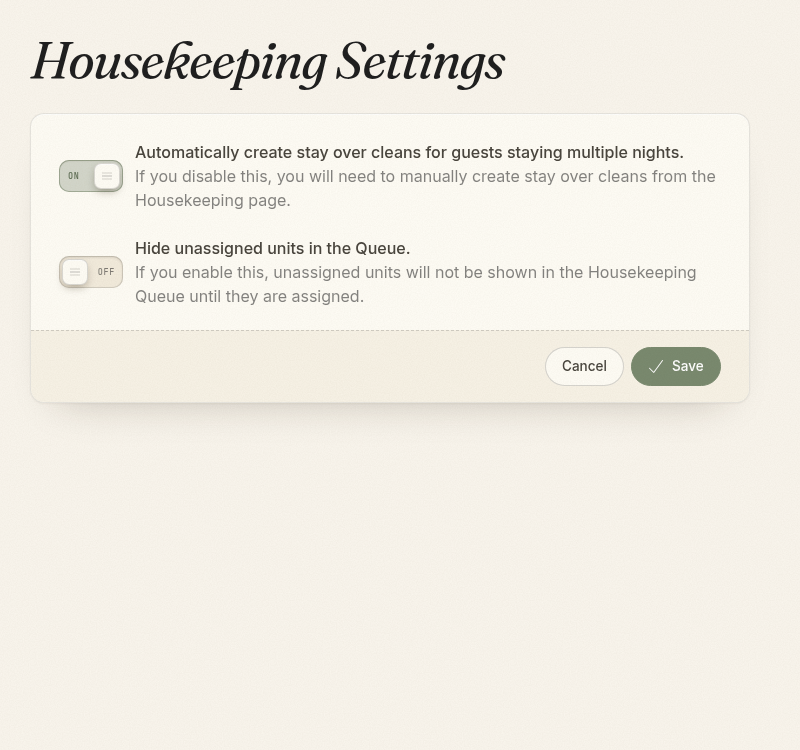
When automatic stay-over cleans are off, managers must create each stay-over clean manually on the day it is needed.
When unassigned units are hidden, housekeepers do not see that work in the Queue until a manager assigns it.
Add a stay-over clean manually
Manual stay-over cleans can only be created for today.
- Open Housekeeping → Manager.
- Select Add stay over clean.
- Choose the occupied Unit.
- Select Create housekeeping.
- Assign the new clean to a housekeeper from the Manager board when needed.
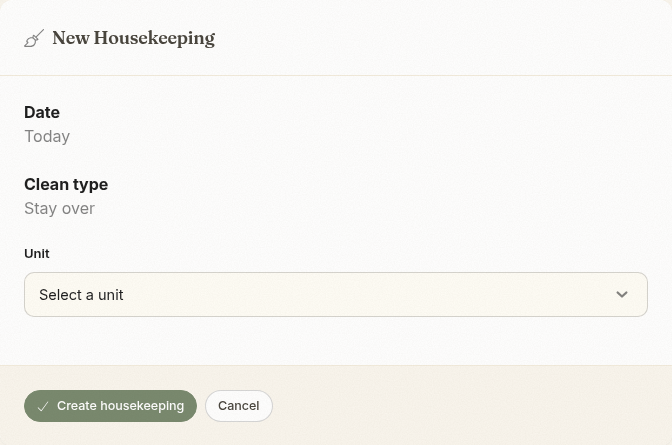
Only active units with stay dates that began before today and end after today appear in the list. A unit does not appear if it already has a housekeeping clean scheduled for today.
Create checklist items
- Open Settings → Checklist Items.
- Select New checklist item.
- Choose the Clean type:
- Check-in
- Check-out
- Stay-over
- Enter a short Name and optional Description.
- Leave the item property-wide, or turn on Apply to specific units and select units.
- Select Create checklist item.
Use specific, observable instructions such as “Replace used towels” or “Confirm thermostat is set to 70°F.” Keep one action per checklist item.
Use the Manager board
Open Housekeeping → Manager to review work by date.
Managers can:
- Move to the previous or next day
- Add a manual stay-over clean
- Assign or unassign one or several rooms
- Review delayed and completed work
- Open a room's cleaning details and history
- Start an inspection when work is ready
Assign work before the shift when possible. Unassigned work remains available to managers and may also appear to housekeepers depending on the Queue setting.
Use the Housekeeping Queue
The Queue groups work into:
- In Progress
- Open Housekeepings
- Finished Housekeepings
Managers can see all work. Housekeepers see unassigned work and work assigned to them, unless the property hides unassigned units.
A housekeeper should:
- Open the assigned room.
- Select Start.
- Complete each checklist item.
- Use View unit photos for room setup reference.
- Add Notes when the manager needs context.
- Use Maintenance to report a repair issue.
- Pause when work stops temporarily, then Resume.
- Select Finish when the room is ready.
Use Delay when work cannot be completed on time. Use Skip only when the clean should not be performed.
Inspect completed work
When inspection is required, a manager can select Start inspection and review the checklist, notes, photos, and room condition.
- Pass completes the inspection.
- Fail pauses the housekeeping and notifies the assigned employee.
After a failed inspection, the employee can select View inspection, review the notes, Resume, correct the room, and Finish again. The manager can then Reinspect.
Write clear inspection notes that describe the needed correction rather than only marking the room failed.
Handle maintenance issues
Use the Maintenance action from the housekeeping detail when staff find damage or a repair need. Include the unit, a clear description, and photos when useful.
A maintenance task does not automatically make a unit unavailable for sale. Add a unit blockout or change inventory separately when the issue prevents occupancy.
Review performance
Open Reports → Housekeeping Completions to review completed work. Managers can also use the arrival/departure unit matrix for a broader operational view.
Use the reports with the housekeeping history to investigate delays, repeated inspection failures, or workload imbalances.