Build and publish staff schedules
Create weekly shifts, account for approved time off, publish schedules, and help staff review their workweek.
Use staff scheduling to build Monday–Sunday shifts and publish them when they are ready for employees to see.
Permissions
The Staff Scheduling feature must be enabled for the property.
- All signed-in staff can open Schedules → My Schedule and view their own published shifts.
- All signed-in staff can open Schedules → Team Schedule and view active coworkers and their published shifts. Staff can see notes on their own shifts, but not coworkers' notes.
- Manage Staff Scheduling is required to use Schedule Builder, see every published shift note in Team Schedule, and create, edit, delete, publish, or unpublish shifts.
The property owner can grant capabilities under Settings → User Groups.
Create a shift
- Open Schedules → Schedule Builder.
- Use the arrows to select a week.
- Select the + in the employee and date cell.
- Confirm the Staff Member and Date.
- Enter Start Time and End Time. Add an optional Shift Label to describe the work, such as breakfast cook, breakfast attendant, or housekeeping.
- Add optional Notes, then select Create Shift.
A shift cannot end before it starts, overlap another shift for the same employee, or fall on a date with approved time off.
New shifts remain in draft until the week is published. Select a shift in the grid to edit or delete it. If the employee unexpectedly cannot work, edit the shift and select Called Out. The shift stays on the schedule for history, but Comfortly stops clock-in reminders and does not flag it as late or absent.
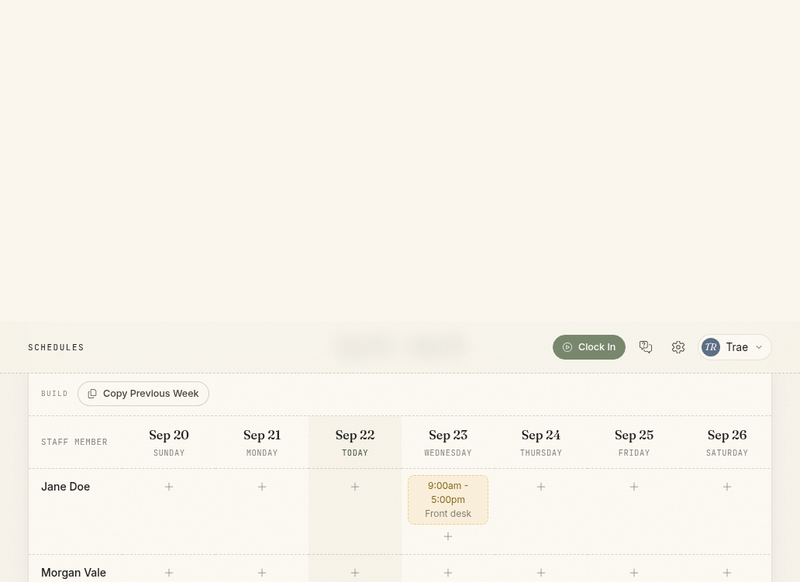
Copy the previous week
- Open the empty week you want to build.
- Select Copy Previous Week.
- Review the copied shifts and make any changes.
- Publish the week when it is ready.
Comfortly only copies into a week with no existing shifts. Copied shifts are drafts, even when the original shifts were published.
Review time off
Approved time off appears in the employee's schedule cells and prevents a new shift from being added on those dates.
When a manager approves a request that conflicts with an existing shift, Comfortly displays the conflicting shifts but does not remove them. Edit or delete those shifts separately before publishing the final schedule.
Publish a schedule
The bar below the schedule shows how many shifts are still drafts.
- Review the week, including approved time off and shift notes.
- Select Publish All.
Publishing makes every draft shift in that week visible in each employee's My Schedule and sends schedule notifications to employees who have shifts that week.
If the schedule needs more work, select Unpublish All. Unpublished shifts no longer appear in My Schedule. Editing or deleting a shift that was already published sends a schedule-change notification to the affected employee.
View and print the team schedule
- Open Schedules → Team Schedule.
- Use the arrows to move between weeks.
- Review each active staff member's published shift times, labels, and called-out status.
- Select Print when you need a paper copy.
Team Schedule never shows draft shifts or time-off information. Your own shift notes are visible to you. Coworkers' notes stay private unless you have Manage Staff Scheduling.
View and print your schedule
- Open Schedules → My Schedule.
- Use the arrows to move between weeks.
- Review each shift's label, start time, end time, and notes.
- Select Print when you need a paper copy.
Only published shifts appear in My Schedule. If an expected shift is missing, ask a scheduling manager whether that week has been published.