Create discounts and promo codes
Configure fixed, percentage, length-of-stay, free-night, and non-refundable offers.
Discounts let you create promo-code offers, length-of-stay offers, and a primary non-refundable rate for eligible room charges. Standard booking screens cannot select a normal discount without a promo code.
Permissions
Manage Products & Pricing is required to create, edit, or delete discounts. Staff can apply an active promo code during a booking without an additional capability. The property management system must be enabled.
The property owner can grant capabilities under Settings → User Groups.
Create a discount
- Open Settings → Discounts.
- Select New discount.
- Enter a staff-friendly Name.
- Add a Promo code for a standard offer. Leave it blank only when configuring the primary non-refundable-rate workflow.
- Choose the discount amount and requirements.
- Set the eligible units and dates.
- Set the discount to Active.
- Select Create discount.
Choose the discount amount
Use one of these approaches:
- Fixed amount: A set currency amount off.
- Percentage: A percentage off the eligible amount.
- Length-of-stay tiers: Different fixed or percentage discounts at different night thresholds.
Enter either a fixed amount or percentage. Entering one clears the other.
Tiers replace the base fixed or percentage discount. When a stay reaches several tiers, the tier with the highest qualifying Minimum nights supplies the single discount.
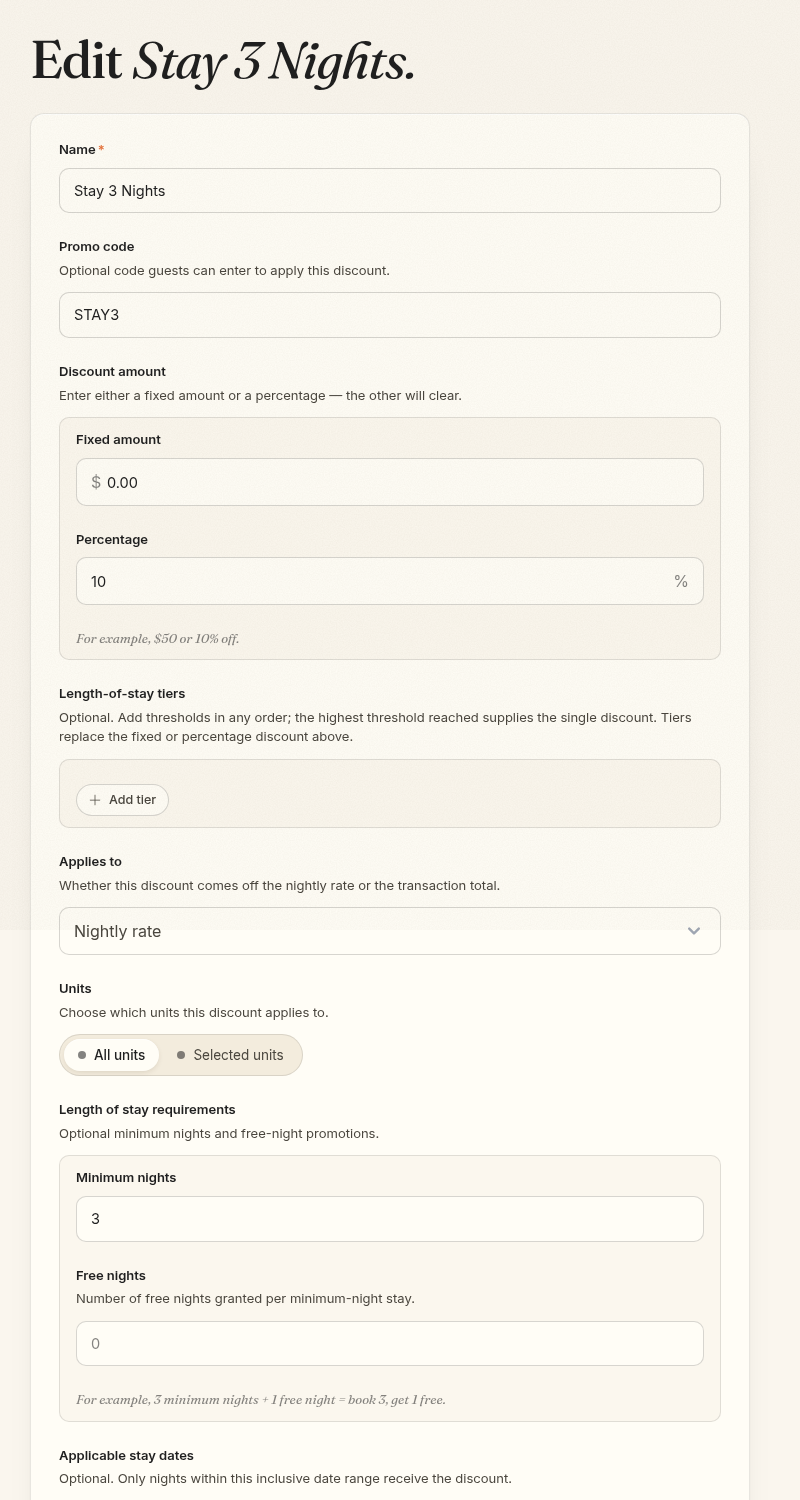
Add stay requirements
- Minimum nights: The shortest stay that qualifies.
- Free nights: The number of free nights granted for each qualifying minimum-night block.
For example, a minimum of three nights with one free night creates a book-three, get-one-free offer. Free-night discounts use the least expensive eligible nights.
Choose what the discount applies to
Use Applies to to choose Nightly rate or Transaction total.
Under Units, select:
- All units for a property-wide offer.
- Selected units to limit the offer to chosen unit groups or individual units.
For a split stay, every unit must be included in the selected scope for the discount to apply.
Discounts apply to eligible room charges. They do not reduce add-on, product, or automatic-charge prices.
Limit the dates
- Applicable stay dates: Only nights from From through Through, inclusive, receive the discount.
- Blackout dates: Add one or more inclusive date ranges when the promotion cannot be used. If any night of a stay falls within a blackout range, the entire promotion is unavailable.
- Valid until: The last day the discount can be used.
- Active: Only active discounts can be applied. Guest access also requires a promo code or the primary non-refundable-rate setting.
Use applicable stay dates for seasonal offers. Use valid-until for a booking deadline. You can use both when a promotion must be booked by one date for stays during another date range.
Create a non-refundable offer
Turn on Non-refundable when the guest gives up standard cancellation rights in exchange for the discount.
A non-refundable discount must apply to the Transaction total. Turn on Show as non-refundable rate if it should be the main non-refundable option displayed in the booking flow. Only one active discount can be marked as that primary option.
Review the value and terms carefully before activation. The non-refundable selection overrides the standard cancellation policy for that booking.
Test a promo code
- Open the property's public booking page.
- Search for dates and units that meet the requirements.
- Enter the promo code exactly as configured.
- Confirm the discounted nightly rate and total.
- Test a date, unit, or stay length that should not qualify.
If a code is rejected, check that the discount is active, has not expired, includes every unit in the stay, and matches the stay dates and minimum nights.
Disable or delete a discount
Set a discount to Inactive to stop new use while keeping the discount record. A discount used on a future booking cannot be deleted. Deleting an eligible discount removes its setup record, so use Inactive when you want to preserve the discount for reporting and reference. Posted financial entries keep their recorded amounts.