Set up taxes
Create tax rates, assign them to rooms and products, and review collected tax.
Comfortly calculates taxes from the rates assigned to unit groups and product types. Create each tax once, then select where it applies.
Permissions
To complete every part of this guide:
- Manage Products & Pricing is required to create taxes, assign them to product types, and manage schedules.
- Manage Units is required to assign taxes to unit groups.
- View Reports is required to open the Tax Report.
The property management system must be enabled. The property owner can grant capabilities under Settings → User Groups.
Create a tax
- Open Settings → Taxes.
- Select Add tax.
- Enter a clear Name, such as Lodging Tax or Sales Tax.
- Enter the Rate as a percentage.
- Select Create tax.
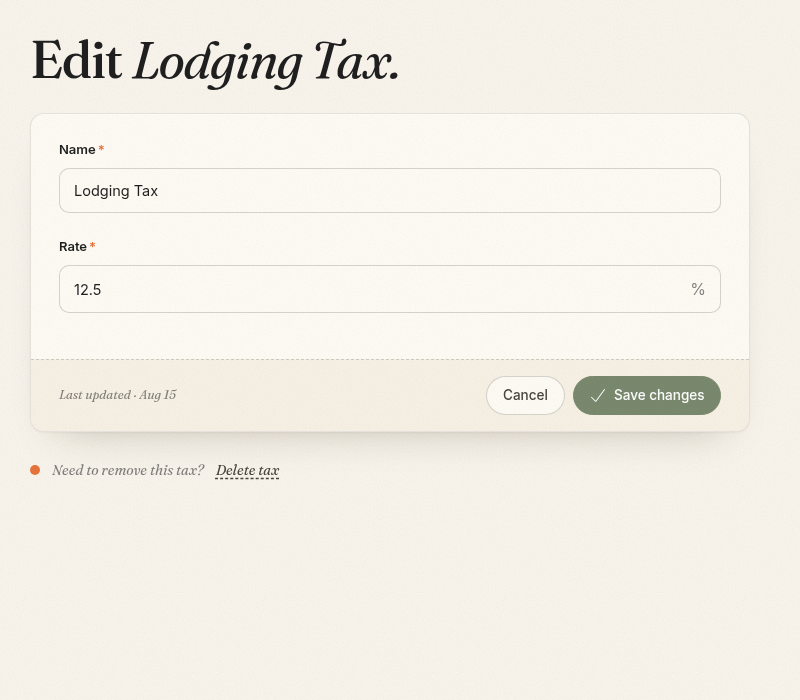
The rate must be greater than zero. Comfortly adds the calculated tax to eligible charges and shows it on booking totals and folios.
Assign a tax to rooms
Room taxes are assigned through unit groups:
- Open Settings → Unit Groups.
- Create or edit a unit group.
- Under Taxes, select every tax that applies to the group's units.
- Select Save changes.
All units in that group use the selected taxes. If different rooms have different tax rules, place them in separate unit groups.
Assign a tax to products
Product taxes are assigned through product types:
- Open Settings → Product Types.
- Create or edit a product type.
- Under Taxes, select every tax that applies to products of that type.
- Select Save changes.
Products inherit their taxes from the selected product type. Packages calculate taxes from the products and quantities included in the package.
Check tax calculations
After assigning taxes:
- Start a test booking using a taxed unit group.
- Add a taxed product or package if applicable.
- Review the booking total and folio.
- Confirm each tax name and amount.
Room discounts reduce the eligible room amount before tax is calculated. Product and package taxes use their applicable product amounts.
Change a tax rate
Edit the tax, enter the new Rate, and select Save changes.
A rate change creates a new schedule effective today. Comfortly keeps earlier rate schedules for historical records. The current screen does not schedule a future rate change, so make the change on the day it should take effect.
Review future quotes and connected booking channels after a rate change. Existing posted financial transactions keep their recorded tax amounts.
Review collected tax
Open Reports, then select Tax Report under Revenue & Pricing, to review:
- Total Taxes Collected
- Taxes by Type
- A selected reporting date range
- CSV export
Use the report to reconcile Comfortly with tax filings, but confirm filing requirements with your tax professional.
Delete a tax
Deleting a tax stops it from being used in normal tax calculations. Historical schedules and financial records remain available.
Remove the tax from every unit group and product type before deleting it. A deleted tax can still appear in the current Unit Group tax list; leave it unselected and contact Comfortly support if you need help cleaning up an old assignment. If you may need the same tax again, keep it and update assignments instead.