Set up unit groups and units
Organize your rooms, add occupancy details and facilities, and prepare units for booking.
Unit groups organize rooms that share the same pricing and tax rules. Individual units represent the actual rooms, cabins, or other spaces a guest can reserve.
Permissions
To complete every part of this guide:
- Manage Properties is required to set the property's default pet limit.
- Manage Units is required to create and edit unit groups and units.
- Manage Products & Pricing is required to create and activate rate plans.
- Manage Availability is required to add blockouts when a unit should not be sold.
The property management system must be enabled for unit groups and rate plans. The property owner can grant capabilities under Settings → User Groups.
Before you start
Create any room taxes under Settings → Taxes before setting up unit groups. You can add or change taxes later, but creating them first makes setup faster.
Plan which units should share a booking-page option and rate plan. For example, three similar king rooms can belong to one King Room unit group while remaining separate units on the occupancy map.
Create a unit group
- Open Settings → Unit Groups.
- Select New Unit Group.
- Enter a clear Name that describes this type of room.
- Under Taxes, select every tax that applies to units in the group.
- Select Create unit group.
A unit group controls how similar rooms are grouped on the booking page. Rate plans are also assigned to unit groups, so units in the same group share the same available pricing.
Create a unit
- Open Settings → Units.
- Select New Unit.
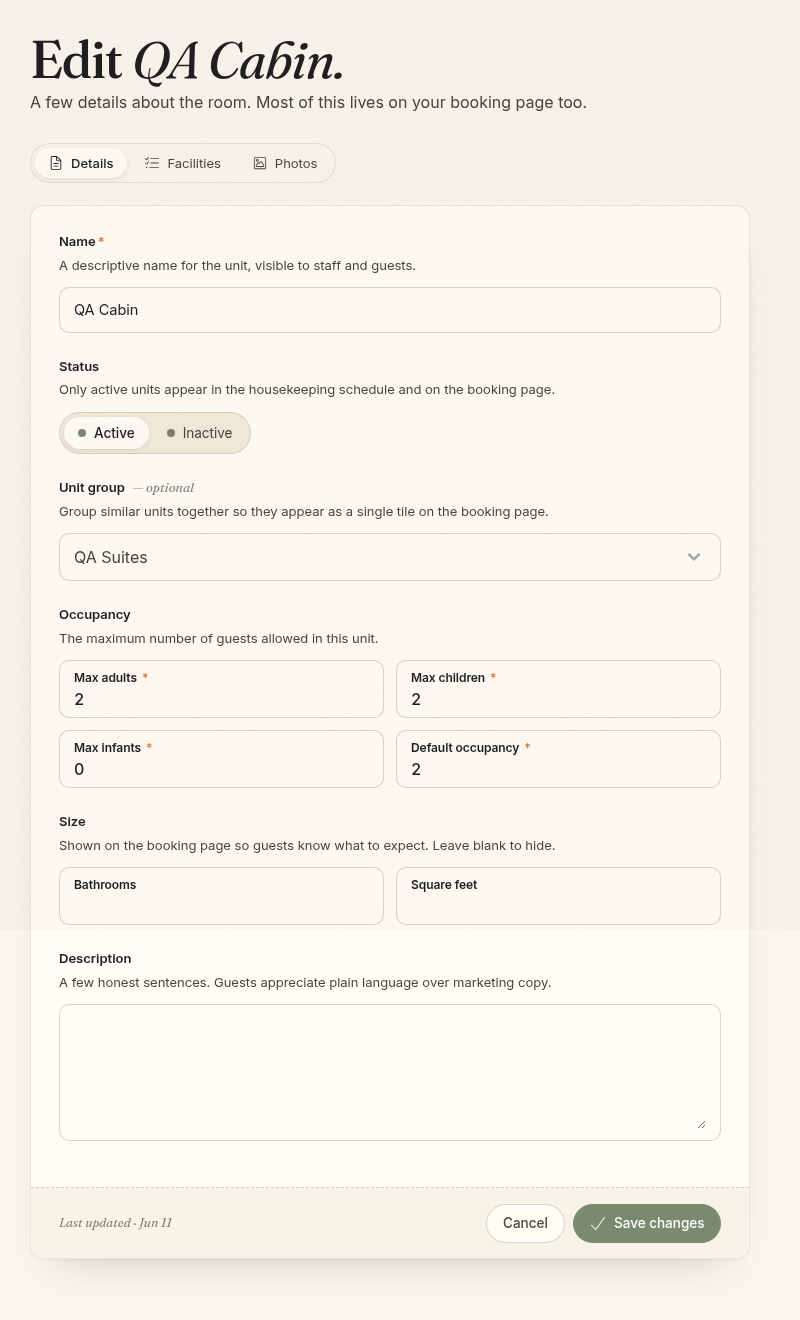
- Enter the unit details.
- Select Create unit.
- Use the Facilities and Photos tabs to finish setup.
Unit details
- Name: The room name visible to staff and guests.
- Status: Keep the unit Inactive until its details, photos, and rates are ready. Only active units appear in the housekeeping schedule. Do not rely on this status to stop online sales; booking availability is controlled by rates, allocations, and blockouts.
- Unit group: Select the group that supplies this unit's rates, taxes, and booking-page grouping.
- Max adults and children: Set the limits enforced by the direct booking flow.
- Max infants: Records infant capacity for connected channels and the API; the current direct booking flow does not ask for an infant count.
- Default occupancy: Used for held-room group booking links and connected channel data, not as the default guest count in the normal booking search.
- Bathrooms and square feet: Optional details shown to guests.
- Description: A short, plain-language description of the room.
Add facilities and accessibility details
Open the unit's Facilities tab and select the amenities that are actually available. These details appear on the booking page and help guests choose the right room.
Use Accessibility details for useful specifics such as doorway widths, bathroom setup, the route to the room, alarms, or other information a guest should know before reserving.
Private check-in instructions in SMS
On a unit's Details tab, save Check-in instructions such as arrival directions or lockbox details. These are not shown on public booking pages or in unit API responses. Manage Units controls editing; Manage Communications controls SMS templates.
Insert {{unit_check_in_instructions}} into a shared SMS template. Email does not offer this variable. Shared text and other variables are saved when scheduled, but instructions and room assignments refresh on every delivery attempt. Only this reservation's current and upcoming units are included: cancelled, no-show, checked-out allocations and allocations whose checkout date has passed (property local date) are excluded. Checkout-day allocations remain eligible until marked checked out. Units are ordered by arrival date, then name and ID, with duplicate units included once. Multiple relevant units receive name labels, separated by blank lines; blank instructions are omitted. An entirely blank message is cancelled.
Templates allow 480 characters. Expanded messages are not truncated and may incur multiple SMS segment charges. Messages exceeding 1,600 characters fail rather than sending incomplete instructions.
Add and order photos
Open the Photos tab and upload clear photos of the room. Photos are used on the booking page and as housekeeping reference photos.
Drag photos into the preferred display order. The first photo receives the Primary badge and appears on booking cards.
Add rates and activate the unit
A unit needs an active, bookable rate plan through its unit group before guests can reserve it.
- Open Settings → Rate Plans.
- Create or review a rate plan for the unit group.
- Confirm the plan has a current rate schedule and is bookable.
- Return to Settings → Units and change the unit's status to Active so it appears in housekeeping operations.
If a unit does not appear for sale, check its unit group, rate plan, rate schedule, occupancy, and date availability. To stop online sales, disable the applicable rate plan or block the unit's inventory rather than relying on the unit status.
Set pet limits
Pet limits and pet fees are separate settings. You can allow pets and record their count without charging a fee.
- Open Settings → Property.
- Set Default maximum pets per unit. The default is 0, which means pets are not allowed unless a unit group or unit overrides it.
- Save your changes.
- To override the property default for a group, open Settings → Unit Groups, edit the group, and set Maximum pets per unit.
- To override the group limit for one unit, open Settings → Units, edit the unit's details, and set Maximum pets.
Use nonnegative whole numbers. A blank group or unit limit inherits its parent's setting; 0 explicitly disallows pets. The unit's own limit takes priority over its group, and the group takes priority over the property default. For example, a property default of 2 can have a no-pets group set to 0 and one pet-friendly unit in that group set to 1.
The booking form asks for Number of pets when at least one active unit permits pets, whether or not a pet fee exists. Rooms must accommodate the requested count. The same limits apply to guest and staff bookings, including staff pet-count changes and room moves or additions. For a reservation with multiple units, the count must fit every selected unit; it is not divided between rooms.
For an optional charge, see Set up products and packages → Add an optional pet fee.
Changing a unit group
Moving a unit to another group changes the pricing, taxes, booking-page grouping, and group availability used for that unit. Review future rates and reservations before making the change.