Set up rate plans and schedules
Add room prices, minimum stays, seasonal schedules, and booking availability for each unit group.
Rate plans control the prices and minimum-stay rules offered for a unit group. A plan can have several schedules so rates change automatically by season.
Permissions
Manage Products & Pricing is required to open Rate Plans and create, edit, schedule, or change the bookable status of a plan. The property management system must be enabled.
The property owner can grant capabilities under Settings → User Groups.
Before you start
Create your Unit Groups first. Every rate plan belongs to one unit group, and the units in that group use the plan's pricing.
Decide whether you need one plan or several for each group. Separate plans are useful when guests can choose different terms, such as a flexible rate and a non-refundable rate.
Create a rate plan
- Open Settings → Rate Plans.
- Select New rate plan.
- Enter a clear Name.
- Select the Unit group that uses this pricing.
- Set the plan to Bookable when it should be available for new reservations.
- Add at least one rate schedule.
- Select Create rate plan.
Add a rate schedule
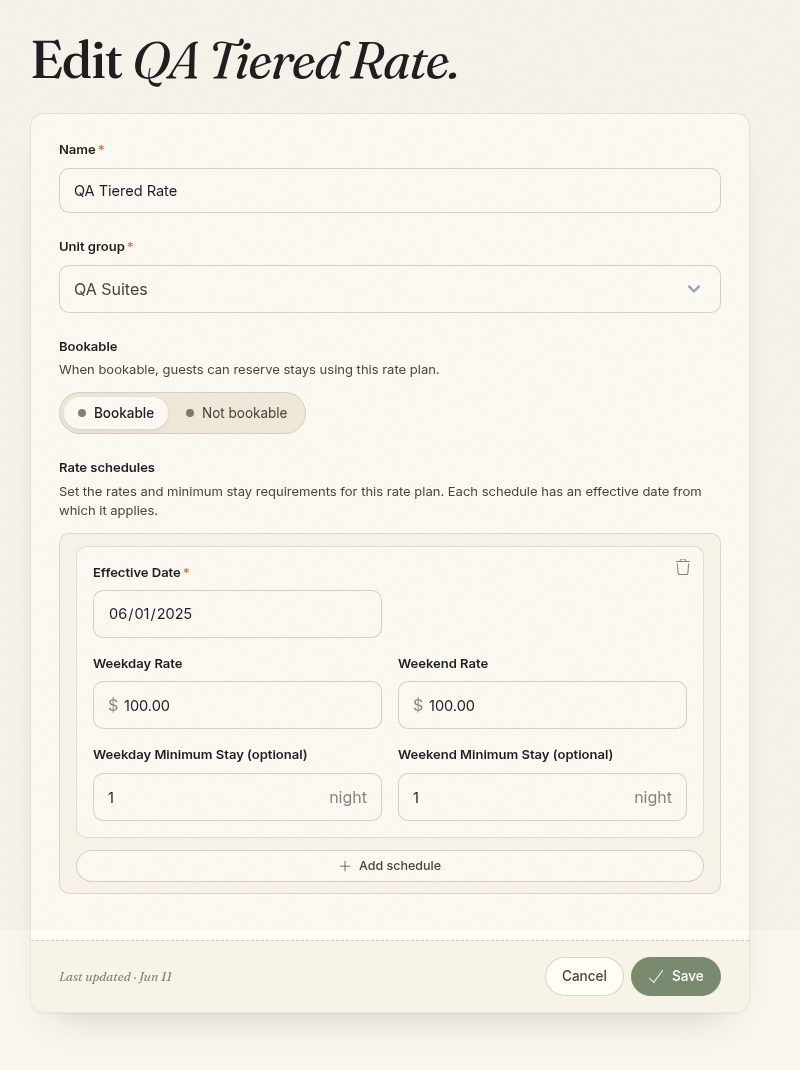
Each schedule starts on an Effective Date and remains in effect until the next schedule begins. Every schedule stores a nightly rate and optional arrival minimum for each day from Sunday through Saturday. You can also close sales for an occupied night, close arrivals on that day, or close departures on that day.
Existing weekday/weekend schedules are preserved as seven daily records: Sunday through Thursday share the weekday values, and Friday and Saturday share the weekend values.
Leave a minimum-stay field blank to use a one-night minimum. The minimum stay is selected from the guest's arrival date. Date-specific revenue-management adjustments change only the nightly price; the schedule's restrictions still apply.
Add seasonal pricing
Use another schedule whenever prices, minimum stays, or booking restrictions should change:
- Edit the rate plan.
- Select Add schedule.
- Choose the first date the new pricing should apply.
- Enter the seven daily rates.
- Add arrival minimum stays and day-specific restrictions if needed.
- Select Save.
Schedules must have different effective dates. Comfortly selects the latest schedule that starts on or before each stay date.
An existing schedule's effective date cannot be edited. If the start date needs to change, remove that schedule and add a new one with the correct date. Review future bookings and connected channel rates before changing published pricing.
Make a plan bookable or unavailable
A Bookable plan can be offered for new reservations. Set it to Not bookable when you want to stop offering it without removing its rate history.
You can also use the switch on the Rate plans list to quickly enable or disable a plan.
If all plans for a unit group are not bookable, guests will not receive a price for that group.
Check your setup
Before publishing a unit, confirm that:
- The unit belongs to the correct unit group.
- The group has a bookable rate plan.
- A rate schedule starts on or before the dates guests can book.
- All seven daily prices are greater than zero.
- Minimum stays and arrival/departure restrictions match your booking rules.
- The unit has rates and is available for the selected dates.
Use the public booking page to search a few weekday, weekend, and seasonal date ranges. Confirm the nightly price, minimum stay, and room availability before sharing the booking link.
Connected channels
If your property is connected to Channex, saved rate schedule changes can sync to mapped channels. Check the connected rate plan mappings and channel restrictions after changing rates, especially for future seasonal schedules.