Set up payment processing
Connect Stripe, finish verification, and optionally register front-desk card readers.
Comfortly uses Stripe to securely collect card payments, save approved cards for a stay, issue refunds, and send payouts to your property.
Permissions
Manage Billing is required to open Settings → Payment Processing, connect Stripe, and configure card readers. After setup, signed-in staff can take normal booking payments without that capability.
The property management system must be enabled. Card-reader setup also requires the Stripe Terminal feature. The property owner can grant capabilities under Settings → User Groups.
Before you start
You need permission to manage billing. Stripe will also require accurate business, owner, bank, and tax information during onboarding.
Payment setup is disabled for demo properties. Contact Comfortly support if Settings → Payment Processing is not visible or the property should be moved out of demo mode.
Configure external payment types
Use external payment types for money collected outside Comfortly, such as cash, checks, Tradebank, third-party gift certificates, house accounts, or channel-collected payments.
- Open Settings → External Payment Types.
- Add each option staff should be able to select.
- Rename or remove options as your workflows change. Existing payments keep the name used when they were recorded.
Manage Billing is required to configure these options. Signed-in staff do not need that capability to record a configured type.
Record an external payment
- Open the booking.
- Under Billing & payments, select Record external payment.
- Choose the payment type, enter the amount, and select the settlement or collection date.
- Select Record payment.
The payment reduces the booking balance and appears on the folio and payment report. Comfortly does not charge a card or call Stripe for this action.
Connect Stripe
- Open Settings → Payment Processing.
- Select Setup your account to process payments with Stripe.
- Complete the Stripe onboarding steps.
- Return to Comfortly and reopen Payment Processing.
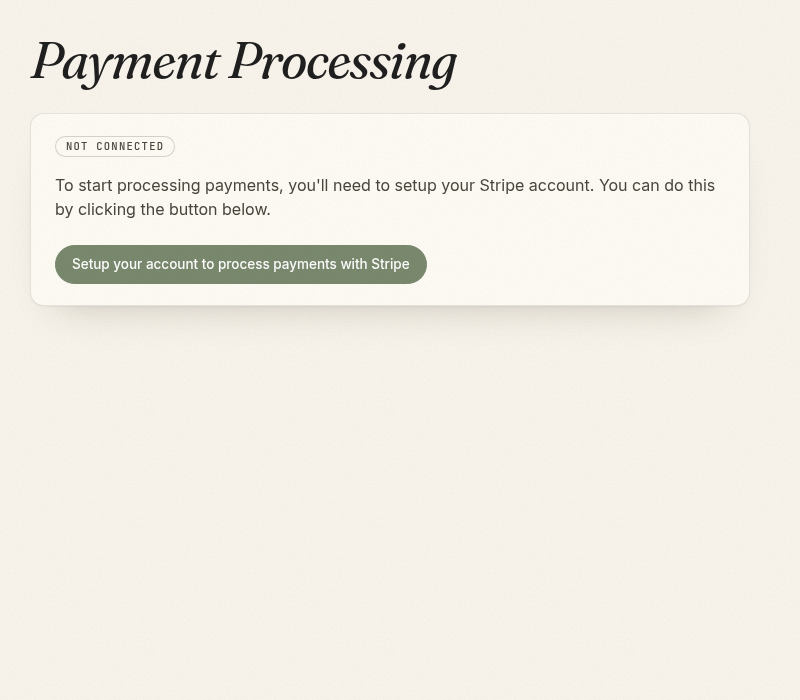
Comfortly shows one of these statuses:
- Not connected: Stripe onboarding has not started or no account is linked.
- Pending: Stripe needs verification or more information. Check the account email and Stripe dashboard.
- Connected: Payment processing is ready. Use Open Stripe Dashboard to manage account and payout details.
Stripe may request more information after the first setup. Keep the account email monitored so payment processing is not interrupted.
What the connection enables
After Stripe is connected, your property can use supported workflows to:
- Collect a card during direct booking
- Charge an eligible card on file from a booking
- Collect deposits and outstanding balances
- Process supported booking refunds
- Take card payments for walk-in point-of-sale sales
- Review payment and payout details in Stripe
A saved card does not guarantee a future charge will succeed. Review failed or pending payment messages before retrying.
Set up a card reader
The Card Readers section appears only when Stripe Terminal is enabled for your property.
- Connect the property to Stripe first.
- Confirm the property address is correct under Settings → Property Details.
- Open Settings → Payment Processing.
- Select Create or sync Terminal location.
- On the supported Stripe reader, connect to a stable network and generate a registration code.
- Enter a support-friendly Reader label, such as Front desk S700.
- Enter the short-lived Registration code.
- Select Register reader.
- Select Sync readers and confirm the reader is Online.
Registration codes are single-use and expire quickly. Generate a new code if Stripe rejects it.
Take a reader payment
For a booking, open Billing & payments and choose the card-reader payment option. For a walk-in purchase, create the sale from Point of Sale and choose the reader at checkout.
Reader payments collect the current positive balance. Keep the payment screen open until Comfortly reports a final result.
Do not retry an attempt that remains pending or processing after an interruption. Reopen the attempt or contact Comfortly support so the Stripe result can be confirmed without risking a duplicate charge.
Refunds and card security
Refunds are sent through Stripe's server-side refund flow, not back through the physical reader. Stripe processing rules and available balance can affect timing.
Never copy full card numbers into notes, messages, or custom fields. Use Comfortly's Stripe payment forms and approved card-on-file workflows.
For guest cards received from OTA bookings, Comfortly support manages the separate card-capture connection when it is available for the property.
Troubleshooting
- Pending connection: Check the Stripe account email and dashboard for required verification.
- Reader offline: Check power, network, updates, and the reader's Stripe location, then sync readers.
- Registration failed: Generate a fresh code and confirm test/live mode matches the connected account.
- Payment outcome is unclear: Do not charge again. Contact Comfortly support with the booking and attempt details.