Set up products and packages
Create add-ons, organize taxes and revenue, bundle products, and choose what guests can buy online.
Products are individual extras such as breakfast, merchandise, or services. Packages combine one or more products and can apply a bundle discount.
Permissions
Manage Products & Pricing is required to create, edit, or remove product types, products, and packages. The property management system must be enabled.
The property owner can grant capabilities under Settings → User Groups.
Recommended setup order
- Create any needed taxes under Settings → Taxes.
- Create Product Types.
- Create individual Products.
- Combine products into Packages if needed.
Create a product type
Product types organize products and control their accounting and taxes.
- Open Settings → Product Types.
- Select New product type.
- Enter a Name and optional Description.
- Choose the Financial account where sales should post. Leave it blank to use Merchandise Revenue.
- Select every Tax that applies to products of this type.
- If loyalty is enabled, choose the Loyalty earn multiplier.
- Select Create product type.
A product type cannot be deleted while active products still use it.
Create a product
- Open Products from the sidebar.
- Select New product.
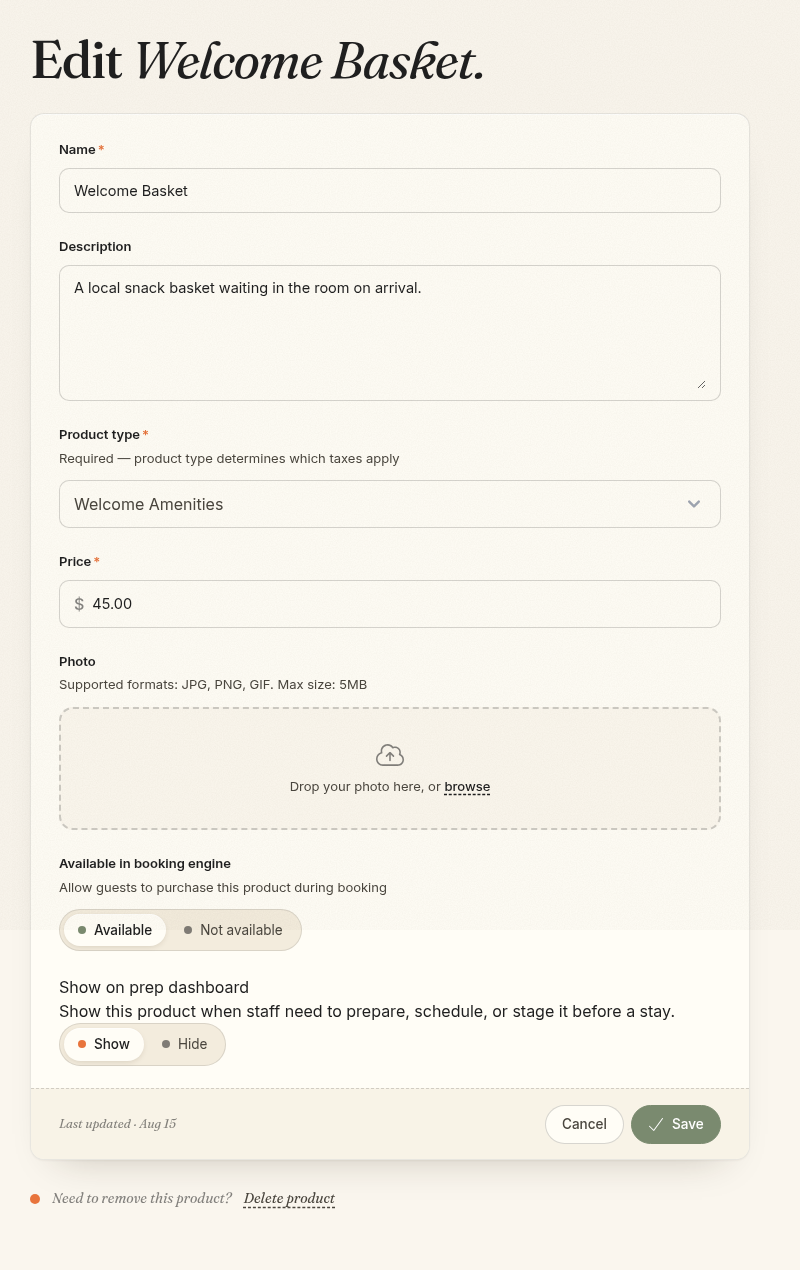
- Enter the product's Name, Description, Product type, and Price.
- Add a clear square photo if the product will be shown to guests.
- Choose whether it is Available in booking engine.
- Choose whether staff should Show on prep dashboard.
- Select Create product.
Availability and preparation
- Available in booking engine: Guests can buy the product during direct booking and from booking management.
- Not available: Staff can still use the product internally, but guests do not see it online.
- Show on prep dashboard: Use this when staff must prepare, deliver, or schedule the item.
- Hide from prep: Use this when no preparation work is needed.
Taxes come from the selected product type and are added when the product is sold.
Add an optional pet fee
Allowing pets does not require a fee. First configure pet limits as described in Set up unit groups and units → Set pet limits. A fee rule does not enable pets or change those limits.
To charge one flat fee per reservation with pets:
- Create a product for the pet fee with your chosen Price and Product type. The product type supplies the applicable taxes; Comfortly does not set a pet-fee amount for you.
- Keep Available in booking engine set to Not available if the product should only be charged automatically, rather than also offered as a guest-selectable extra.
- Open Settings → Auto-Charge Rules and select New Rule. This requires Manage Products & Pricing.
- Select the pet-fee Product.
- Set Trigger type to Once per booking and Quantity to 1.
- Check Only when the reservation has pets, then select Create rule.
Use a product that is not attached to another active auto-charge rule. Pet rules require quantity 1 and cannot use the per-night trigger.
The fee and applicable product taxes are included in guest quotes, checkout totals, and the confirmed folio when the pet count is greater than zero. It is charged once per reservation, regardless of pet count, nights, or the number of rooms. Zero pets means no pet fee, and retrying the charge or saving the count again does not duplicate it.
If staff add pets after booking, the rule applies the fee. Removing pets later leaves the existing charge and taxes in place for staff to review and adjust manually; it does not issue a refund. See Create and manage bookings → Record and update pets.
Create a package
A package must contain at least one product.
- Open Products and select the Packages tab.
- Select New package.
- Enter a Name and Description.
- Enter an optional Discount percentage for the bundle.
- Add a photo if guests can buy it online.
- Choose booking-engine availability and prep-dashboard visibility.
- Under Products, select each included product and its Quantity.
- Use Add product to include more items.
- Select Create package.
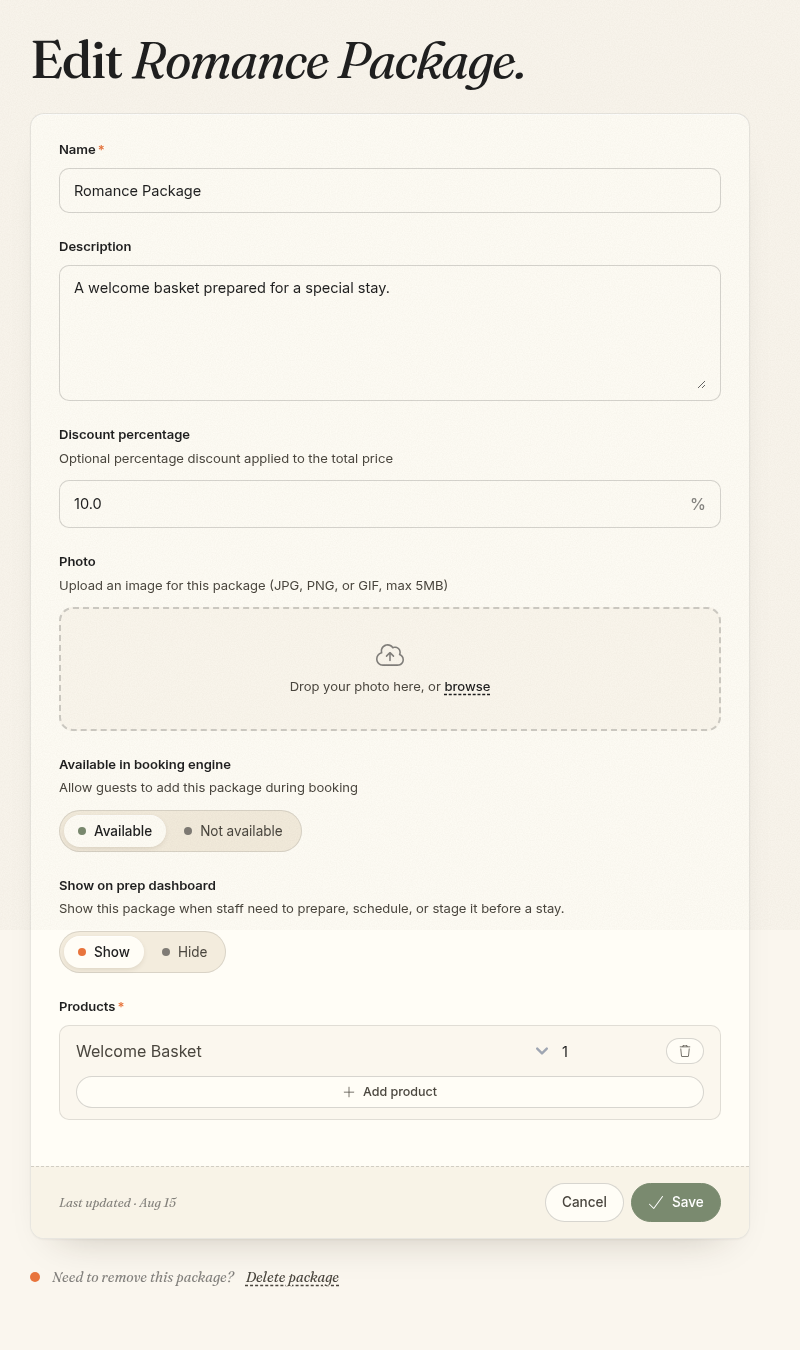
The package price is the total of its products and quantities, minus the package discount. The discount reduces each included product's taxable amount, and taxes are then calculated from that product's product type.
If a package is hidden from the prep dashboard, included products set to Show can still appear individually. Set the package to Show when staff should see the package name instead.
Check the guest experience
If a product or package should be sold online:
- Confirm Available in booking engine is set to Available.
- Open the property's public booking page.
- Start a test reservation and review the extras shown during checkout.
- Confirm the name, description, photo, price, taxes, and package contents.
Availability in the booking engine and visibility on the prep dashboard are separate settings. Turn on both when guests can buy an item and staff must prepare it.
Editing or removing catalog items
Price and description changes affect future sales. Existing booking transactions keep their recorded amounts.
Deleting a product or package removes it from the active catalog. Existing financial transactions keep their recorded amounts. If you only need to stop guest purchases, set the item to Not available instead of deleting it.